Parking view
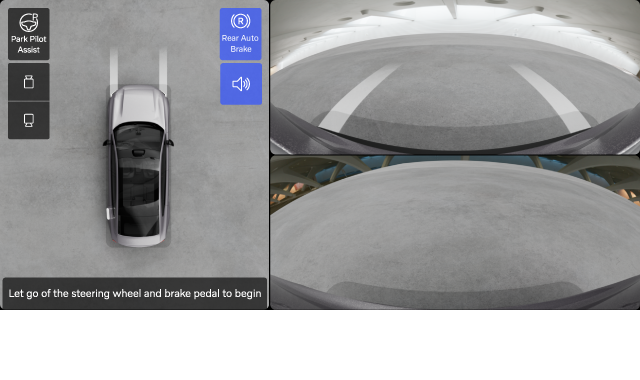
The parking view contains both camera and parking sensor information to help improve your awareness of the vehicle's surroundings. This can be useful when maneuvering at low speeds, such as when parking.
Accessing the parking view
In most cases, the parking view opens automatically when you need it. You can also access it by opening the Camera app in the contextual bar or in the app library  .
.

The parking view closes automatically when you are driving above a certain speed. After parking, the parking view closes when you leave your vehicle.
Features in the parking view
- Camera views that also provide visual guidance and obstacle detection.
- Rear Auto Brake, which can provide automatic braking for obstacles while reversing at low speeds.
- Park Pilot Assist, which can actively steer the vehicle in and out of parking spaces.
Tip
Temporary mute
You can turn the parking support sounds off by pressing the mute button
in the parking view. This lasts for the rest of the drive.
Adjust volume
If you want to change the volume of the parking support sounds, go to sound settings.
Camera views
The front and rear camera views are always visible. The 3D view combines the views to show the vehicle in its surroundings. The standard perspective shows the vehicle from the top, but you can also adjust it to show other perspectives.
When using Park Pilot Assist, the 3D view is replaced with animations to guide you.
When you have gear R selected, it's not possible to close the camera view, but you can switch between them.
Adjusting the 3D view
You can adjust the 3D view by dragging your fingers around to change the angle. You can also zoom in and out by pinching your fingers. Adjusting the view makes it easier to get a closer look from different angles and see things more clearly in the parking view.
Tip
Recenter the 3D view
You can always recenter the view by pressing Recenter view. This allows you to return to the default 3D view again.
Automatic zoom in and out
If you approach an obstacle, the vehicle can automatically zoom in on the front and rear view of the part of the vehicle that's closest to the obstacle. If you drive away from the obstacle or if the obstacle is removed, the vehicle can automatically zoom out again.
Obstacle and distance detection
The parking view can provide both visual and audible alerts if your vehicle detects any obstacles in your surroundings.
These alerts change if you go beyond a recommended stopping point. The color of the visual indication shifts toward red, and the sound changes when you get closer to the obstacle.
Important
Driver responsibility
Obstacle and distance detection is a supplement to safe driving practices. It does not reduce the need or responsibility of the driver to operate the vehicle as safely as possible.
The driver is always responsible for paying attention to the vehicle's surroundings and ensuring that it is safe to maneuver the vehicle.
Detection limitations
The vehicle's obstacle and distance detection capabilities have limitations. Read the separate section covering detection of vehicle surroundings and traffic before using features that rely on these capabilities.
Note
Camera calibration
After servicing your vehicle's parking cameras, they can sometimes take a while to recalibrate themselves. This may mean that certain features, such as the parking view, are unavailable for a short time after having the vehicle serviced.